Glucose Relay
● For iPhone and Apple Watch

Your sensor glucose,
in Apple Health.

Glucose Relay is an iPhone app that copies your FreeStyle Libre glucose readings into Apple Health and shows your latest reading on the Lock Screen, the Home Screen and your Apple Watch. LibreLink shows your glucose but, in many countries, does not save it to Health. Glucose Relay does that job, and keeps the current number a glance away.

Get it on the App Store $1.99 in the United States, bought once. No subscription, no account.

Glucose Relay is not a medical device. It is not an alarm, and it is not a substitute for LibreLink. Do not use it for treatment decisions.

The Glucose Relay main screen: Health is up to date, with the time glucose was saved through, a switch for copying glucose to Health, and rows for the last 24 hours and the Health app.

Why put glucose in Health

Your glucose sits beside your sleep, activity, and heart rate, stays in your own long-term record, and can be shared with your care team or with apps you choose.

How it works

Glucose Relay follows your sensor through LibreLinkUp, Abbott's sharing service, the way a family member would. It updates about once an hour on its own and every minute while it is on screen. Each update covers the last twelve hours, so a missed hour is filled in by the next one.

What you need

A FreeStyle Libre sensor with the LibreLink app, and a free LibreLinkUp account connected to it. The app walks you through it, and so do the steps below.

See what was saved.

Last 24 hours lists every reading Glucose Relay saved to Health in the past day, newest first, in your own unit, so you can check what was saved without leaving the app.

For charts and older readings, the Health app has them under Browse, Vitals, Blood Glucose.

The Last 24 Hours screen: 101 readings saved, then today's readings in mg/dL, newest first, each with its time.

On your Lock Screen and Home Screen.

Your latest reading, with its trend arrow and how old it is. The widgets fetch on their own about every fifteen minutes, or less often if you choose, and mark a reading that is older than fifteen minutes. The Home Screen sizes add a chart of the last twelve hours.

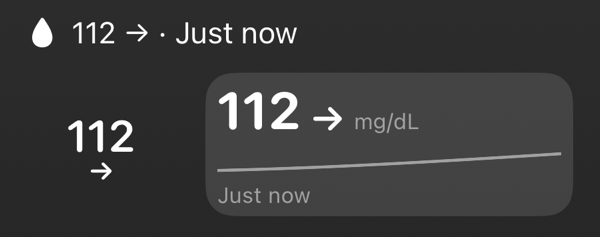
The three Lock Screen shapes: a line of text reading 112 with a steady arrow and Just now, a small round one with 112 and the arrow, and a wider one with 112, the arrow, mg/dL and Just now.
Lock Screen
The small Home Screen widget: the reading 112 with a steady arrow, a short chart, its unit, and how long ago it arrived.
Home Screen, small
The medium Home Screen widget: the reading 112 beside a chart of the last twelve hours with the target range shaded.
Home Screen, medium

Pictures show invented sample readings, never a real person's glucose.

On your wrist.

Your latest reading in the Glucose Relay watch app, with its trend, its age and the last three hours, and on the watch face as a complication in the corner, circular, rectangular or inline slot.

Open the watch app once with your iPhone nearby, and it takes your sign-in from there. After that the watch fetches on its own.

The watch app comes with the iPhone app; there is nothing separate to buy. It needs watchOS 10 or later.

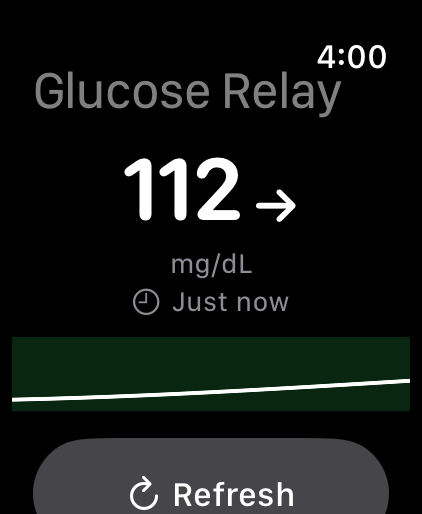
The Glucose Relay watch app: the reading 112 with a steady arrow, mg/dL, Just now, a line for the last three hours, and a Refresh button.
The watch app
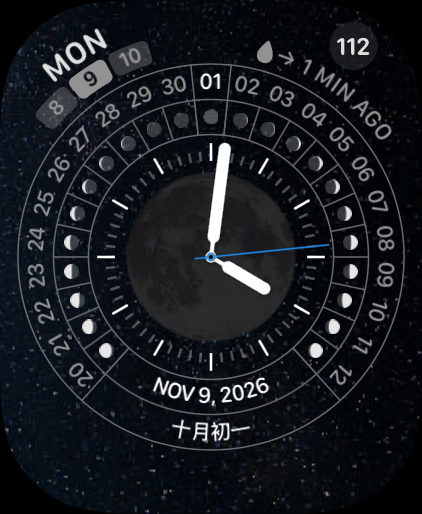
A watch face with the Glucose Relay complication in the top right corner, showing 112 and 1 min ago.
On the watch face

Private by design.

  • Your readings stay yours. They go from Abbott to the Health app on your iPhone. They are not sent to the developer or to anyone else.
  • No account with us, no servers. There is no Glucose Relay account, no server of ours, no analytics and no tracking.
  • Your password stays in the Keychain. It is kept in your iPhone's Keychain and sent only to Abbott. If you use the watch app, the iPhone hands it to the watch's Keychain once, over Apple's encrypted connection between the two.

The full privacy policy is short.

Glucose Relay is not a medical device. It is not an alarm, and it is not a substitute for LibreLink. The widgets and the watch show readings for information only. Do not use it for treatment decisions.

FreeStyle Libre, LibreLink, and LibreLinkUp are trademarks of Abbott. Glucose Relay is an independent project, not affiliated with or endorsed by Abbott.

Get Glucose Relay.

Glucose Relay is on the App Store for iPhone. It is bought once, $1.99 in the United States, with no subscription and no account.

Get it on the App Store

It needs iOS 17 or later, a FreeStyle Libre sensor, the LibreLink app, and a LibreLinkUp follower account. The steps below set up that account. The Apple Watch app comes with it and needs watchOS 10 or later.

Setup and help.

What it does

  • It follows your sensor through LibreLinkUp, Abbott's sharing service, the way a family member would.
  • It saves each reading to Apple Health as Blood Glucose, about every fifteen minutes of your day, plus your current reading.
  • It updates on its own about once an hour, and every minute while it is on screen.
  • Every update covers the last twelve hours, so a missed hour is filled in by the next one.
  • Its Last 24 hours screen lists every reading it saved to Health in the past day.
  • Its widgets show your latest reading, its trend and its age on the Lock Screen and the Home Screen. They fetch on their own about every fifteen minutes, or less often if you choose, and mark a reading that is older than fifteen minutes.
  • On Apple Watch, it shows the reading in its own app and as a complication on the watch face, and the watch fetches on its own as well.

Setting it up

  1. Get LibreLinkUp. Install the LibreLinkUp app from the App Store and create an account. It can use a different email from LibreLink.
  2. Share with yourself. In LibreLink, open the menu, choose Connected Apps, then LibreLinkUp, and add a connection using that email.
  3. Accept the invitation. Open LibreLinkUp and accept. You should see your own glucose there.
  4. Sign in to Glucose Relay with the LibreLinkUp email and password, then turn on Health when it asks.

If Health stops updating

  • Open Glucose Relay. It catches up right away.
  • Don't swipe it away. Swiping the app away in the app switcher tells your iPhone to stop waking it. Leave it and go to another app instead.
  • Your iPhone has to be unlocked. Health is sealed while the phone is locked, so a phone left locked overnight catches up when you next unlock it.
  • Low Power Mode pauses background updates. They resume when it is off, and the app's main screen says so while it is on.
  • Check LibreLinkUp itself. If your glucose is behind there too, LibreLink has stopped sending it to Abbott. Open LibreLink and make sure it has internet.
  • New terms. If Abbott asks you to accept new terms, do that in the LibreLinkUp app, then open Glucose Relay again.

Widgets

  • Adding one. On the Lock Screen, touch and hold the screen, tap Customize, choose the Lock Screen, tap the widget area and pick Glucose Relay. On the Home Screen, touch and hold an empty spot, tap Edit or the plus sign, then Add Widget.
  • How often they update. About every fifteen minutes, or every thirty or sixty if you choose that on the app's main screen under Widgets. iOS decides exactly when a widget runs, so a reading can be a little older than that. When the app has just fetched, the widgets use its reading instead.
  • The clock symbol beside a reading means it is older than fifteen minutes. If LibreLinkUp is behind too, see the steps above: the widgets can only show what Abbott has.
  • After a password change, sign out and back in with the new password. The widgets stop asking Abbott after a refused password, so that your account is not locked, and start again once you have signed in.
  • A Lock Screen widget shows your reading to anyone who can see your phone. Leave it off the Lock Screen if that matters to you; the Home Screen widgets are behind your passcode.

Apple Watch

  • It comes with the iPhone app. There is nothing separate to buy or download. The Watch app on your iPhone installs it on your watch, automatically or from its Available Apps list.
  • Open it on the watch once with your iPhone unlocked and nearby. The watch takes your LibreLinkUp sign-in from the iPhone over Apple's connection between the two; you never type a password on the watch. From then on it fetches readings itself.
  • Adding the complication. Touch and hold the watch face, tap Edit, swipe to Complications, tap a slot and choose Glucose Relay. It fits the corner, circular, rectangular and inline slots.
  • How it stays current. The complication asks LibreLinkUp for a reading on its own, at the interval set under Widgets in the iPhone app. watchOS decides exactly when it runs. The clock symbol means a reading older than fifteen minutes; opening Glucose Relay on the watch fetches at once, and its Recent refreshes screen lists every fetch.
  • If the watch says "Sign in on your iPhone," make sure the iPhone is unlocked and nearby, then tap Try Again. After a password change, sign out and back in on the iPhone first, then open the watch app again.
  • Signing out happens on the iPhone. The watch forgets the sign-in the next time you open Glucose Relay there, and its complication goes blank.

Where to find your readings

In Glucose Relay, tap Last 24 hours on the main screen for the readings it saved in the past day. For charts and older readings, open the Health app and tap Browse, then Vitals, then Blood Glucose. Glucose Relay is listed as the source.

Contact

Questions, or something not working? Write to bruce@bruceelgort.com.

Privacy

Readings go from Abbott to the Health app on your iPhone and nowhere else. There is no Glucose Relay account and no Glucose Relay server. The full privacy policy is short.